Training and support
YasnaSupport practical guide
Providing remote support on Android
Preparing an Android phone or tablet so a Yasna support specialist can see the screen and help you, with an illustrated guide to the permissions.
What is YasnaSupport and how does it help?
In this guide, YasnaSupport is the “Yasna Support” tool shown in the screenshots. It lets a specialist work with you on a problem on the device — for example when a setting, an error message or a workflow in the software has to be checked on that same device.
The general connection steps are based on the ScreenConnect Android app. In branded versions, the app name, the look of the sign-in screen and the settings paths may differ, so get the YasnaSupport installation link and connection details from Yasna support.
Showing the screen is different from controlling the device. Screen-sharing permission lets the specialist see the screen; remote interaction also depends on the required permissions, device compatibility and the app version. Enabling one permission on its own does not guarantee that every device can be controlled.
1. Prepare and start the session
Check the device’s internet connection, make sure it is charged and get the session link or code from the specialist. Install and run YasnaSupport from the source support gives you. If the app asks for a server address or session code, enter the details the specialist provided for that session.
When screen sharing is requested, read Android’s message and, if you agree, tap “Start now” or the equivalent option. Then complete the accessibility steps below. Option names differ between phones and Android versions.
Before you start, close notifications and screens that show personal information. Anything on screen may be visible to the specialist; do not enter passwords, one-time codes or payment details while sharing.
2. Enabling the permissions: illustrated guide
Step 1: Open the device settings
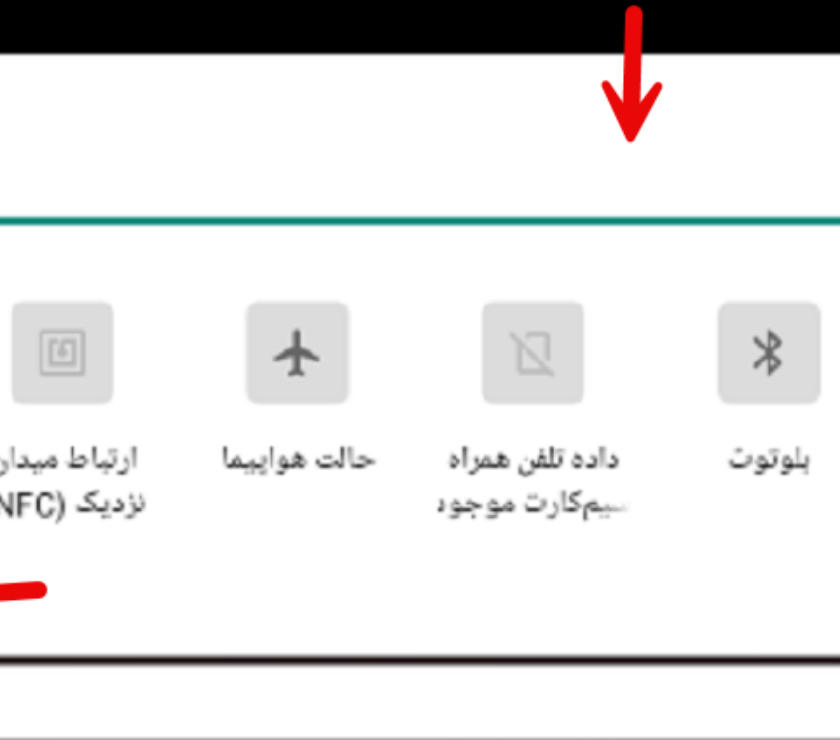
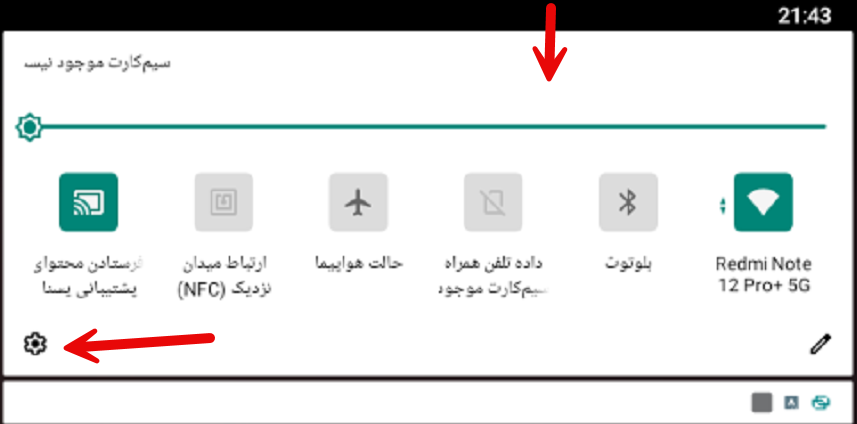
Pull down from the top of the screen to open the quick panel and tap the gear icon. The screenshot also shows a “Send Yasna Support content” shortcut; to continue setting permissions, open Settings from the gear icon.
Step 2: Open Accessibility
In Settings, find “Accessibility”. If your device’s menus differ, search Settings for Accessibility.

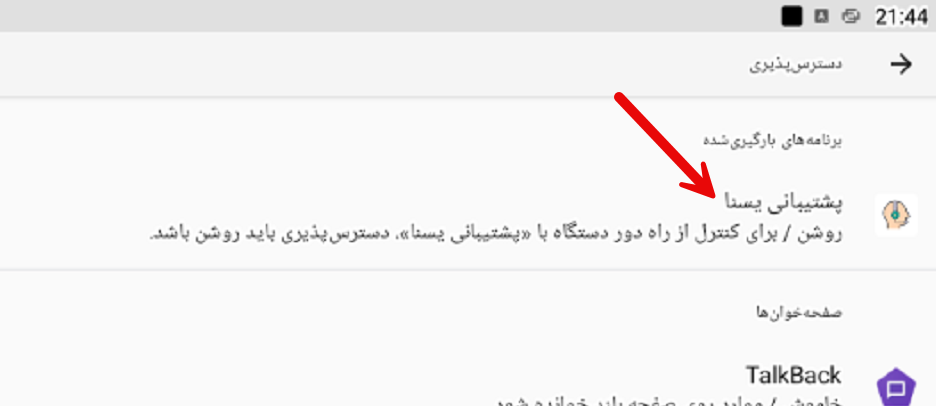
Step 3: Choose “Yasna Support”
Under downloaded apps or installed services, open “Yasna Support”. This option belongs to the app’s service; you do not need to turn on TalkBack for this guide.
Step 4: Turn on the Yasna Support service
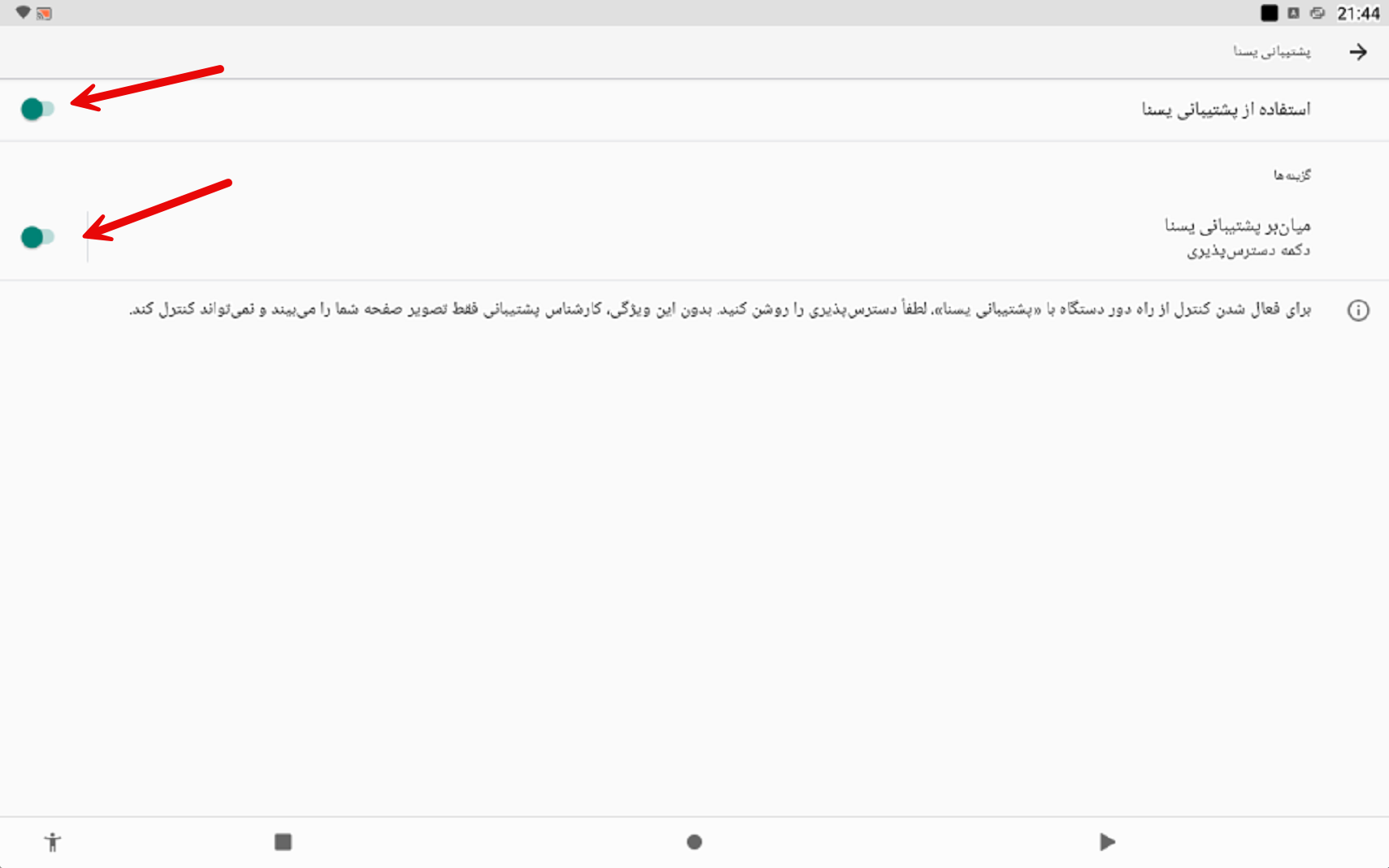
Turn on “Use Yasna Support” and, after reading it, accept the system confirmation. The screenshot also shows a “Yasna Support shortcut” option; that shortcut gives quick access to the service and does not replace turning on the service itself.
The description on this screen explains that without accessibility the specialist can only see the screen and cannot control the device. So if the picture comes through but remote touch does not work, check this service first.
Step 5: Check the display-over-other-apps permission
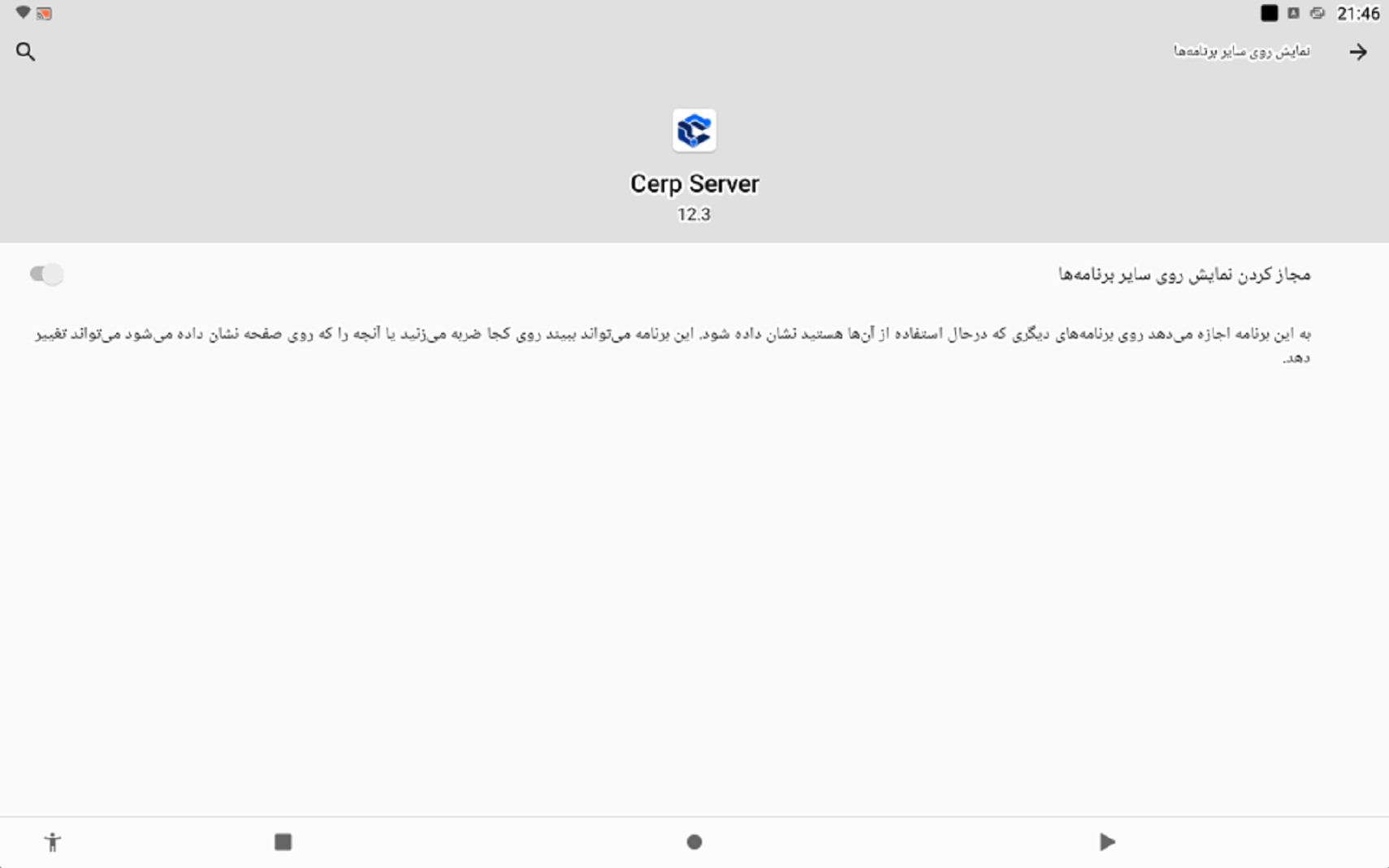
The fifth screenshot shows the “Display over other apps” permission screen for Cerp Server version 12.3, with its switch turned off. This permission is different from accessibility and screen sharing; it lets an app show a window over other apps.
If YasnaSupport or the specialist asks for this permission for your installed version, check the app name and enable it for that app. This screenshot alone does not prove that Cerp Server needs this permission for every YasnaSupport installation.
Final and essential step: go back and tap “Start now”
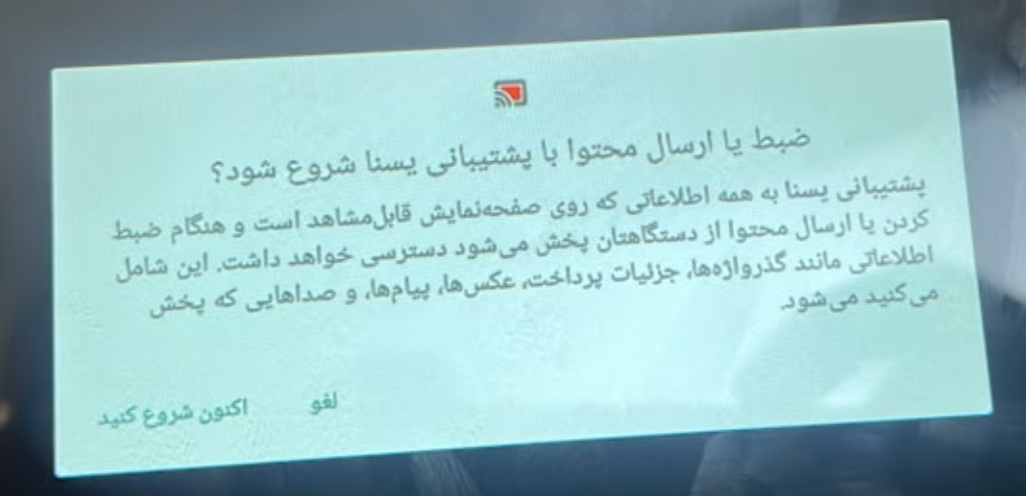
After completing all the settings and permissions, be sure to return to the “Yasna Support” screen. When the “Start recording or casting with Yasna Support?” window appears, read it and tap “Start now” to begin sharing your screen with the specialist.
Turning on accessibility alone is not enough; screen sharing will not start until you confirm this window. Then ask the specialist to check that the picture and control work.
3. If the connection or control does not work
- The picture shows but there is no control: check that the “Yasna Support” service is on. If the problem continues, tell the specialist the device model and Android version.
- The picture does not appear: check the screen-sharing request again and ask the specialist to check the session status.
- The options do not look like the screenshots: search Settings for “Accessibility” and “Display over other apps” and match the exact app name.
- A permission is disabled or blocked: read Android’s message to support so they can identify the right path for your device and installation method.
- The session keeps dropping: check the internet connection and that the app is running; if it repeats, report when it disconnected and any error message.
The screenshots in this guide come from one specific device and version. Android support in ScreenConnect depends on version requirements and device compatibility; full control, or connecting without the user’s consent, cannot be promised for every model.
4. Ending the session and managing permissions
When you are done, end the connection from the support app and make sure screen sharing has stopped. If you no longer need support, you can review and turn off the granted permissions in the device settings. Later sessions may require you to approve the permissions again.
Technical sources
General connection and accessibility steps: official ScreenConnect guide to controlling an Android device. For the public app and its accessibility requirements, see the official ScreenConnect page on Google Play.
The names and paths in this guide are based on the six screenshots provided from the device settings.